Editing Avatar
In the current version (Beta 2.0.0), you need a 3rd party text editor app (like notepad) to edit your avatar.
Putting Textures
All you need to do is move your textures to <minecraft>/config/skinmatics/textures. PNG file only.
The Avatar File
Opening the avatar file should be like this
{
  "config": 1,
  "data": {
    "name": "",
    "maxTicks": 0,
    "strongerEmissiveGlow": false,
    "body": {
      "slim": false,
      "customBaseTexture": false,
      "emissive": false,
      "baseTextures": {},
      "emissiveTextures": {}
    },
    "cape": {
      "visible": true,
      "customBaseTexture": false,
      "emissive": false,
      "baseTextures": {},
      "emissiveTextures": {}
    },
    "wings": {
      "customBaseTexture": false,
      "emissive": false,
      "baseTextures": {},
      "emissiveTextures": {}
    },
    "eyes": {
      "visible": false,
      "hidden": [],
      "emissive": [],
      "blinkingChance": 0,
      "blinkingTicks": 0,
      "baseTextures": {},
      "emissiveTextures": {}
    },
    "lights": {
      "strength": 0
    }
  }
}
| Field | Function | Default (Type) |
|---|---|---|
| config | Just the config file version (do not edit this) | 1 (integer) |
| data | You can edit the contents inside | {} (see below) |
| name | The display name that is shown on the avatar card | Usually the same as your "Display Name" or "Avatar Path" (string) |
| maxTicks | The amount of animated texture ticks for your avatar | 0 (integer) |
| strongerEmissive | Use a stronger emissive glow (EYES) instead of the weaker, light-affected glow (ENTITY_TRANSLUCENT_EMISSIVE) | false (boolean) |
| customBaseTexture | Use custom texture instead of your player default | false (boolean) |
| emissive | Add emissive layer | false (boolean) |
| baseTextures | Your textures (not emissive, not cool) | see Animatable |
| emissiveTextures | Your textures (emissive, cooler) | see Animatable |
| body | Related with your player model | |
| body.slim | Use slim model for your player model | false (boolean) |
| cape | Related with your player cape | |
| cape.visible | Force enable (if you have a cape or custom cape texture) or disable your cape | false (boolean) |
| wings | Related with your elytra | |
| eyes | Add dynamic eyes to your player | See Eyes |
| lights | Allow your player to emit light passively. You need LambDynamicLights for this to work. | 0 (integer, 0 - 15) |
Refresh resource pack (F3 + T by default) to apply your changes in-game (also reload your avatar textures)
Extra: Applying Avatar To Others (Players And Mannequins)
If you've been in the keybind menu, you might seen "Apply Own Avatar To Targeted Player" and "Remove Targeted Player's Profile".
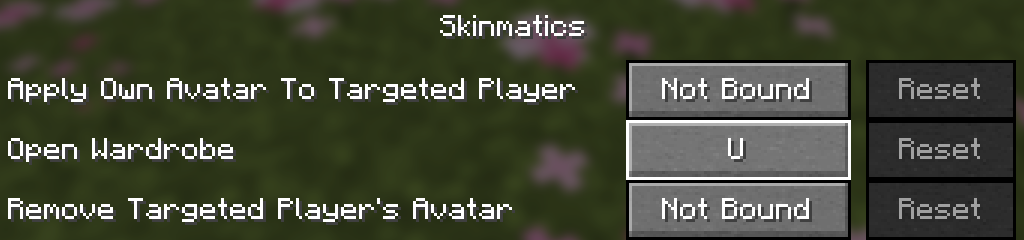
This feature allow you to apply your own avatar to other players (or the Mannequin entity) temporarily using your currently selected avatar. This was made for you to preview your avatar without the need to go to third-person and lowering your FOV.
Try summoning mannequin using /summon minecraft:mannequin, target your crosshair to the entity and press the "Apply Own Avatar To Targeted Player" key with an active avatar.
This extra feature also works in recording mod like ReplayMod and Flashback