Creating Avatar
Opening Wardrobe
You firstly need to open the Wardrobe screen. There are 3 ways to open wardrobe:
- Through "Options..." > "Skin Customizations..." > The Skinmatics button displayed beside "Done"

- Through "Open Wardrobe" key, default is [U] (in-game)
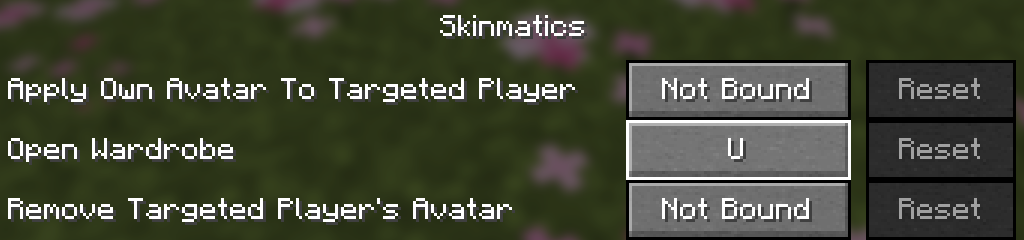
- Through Mod Menu configure

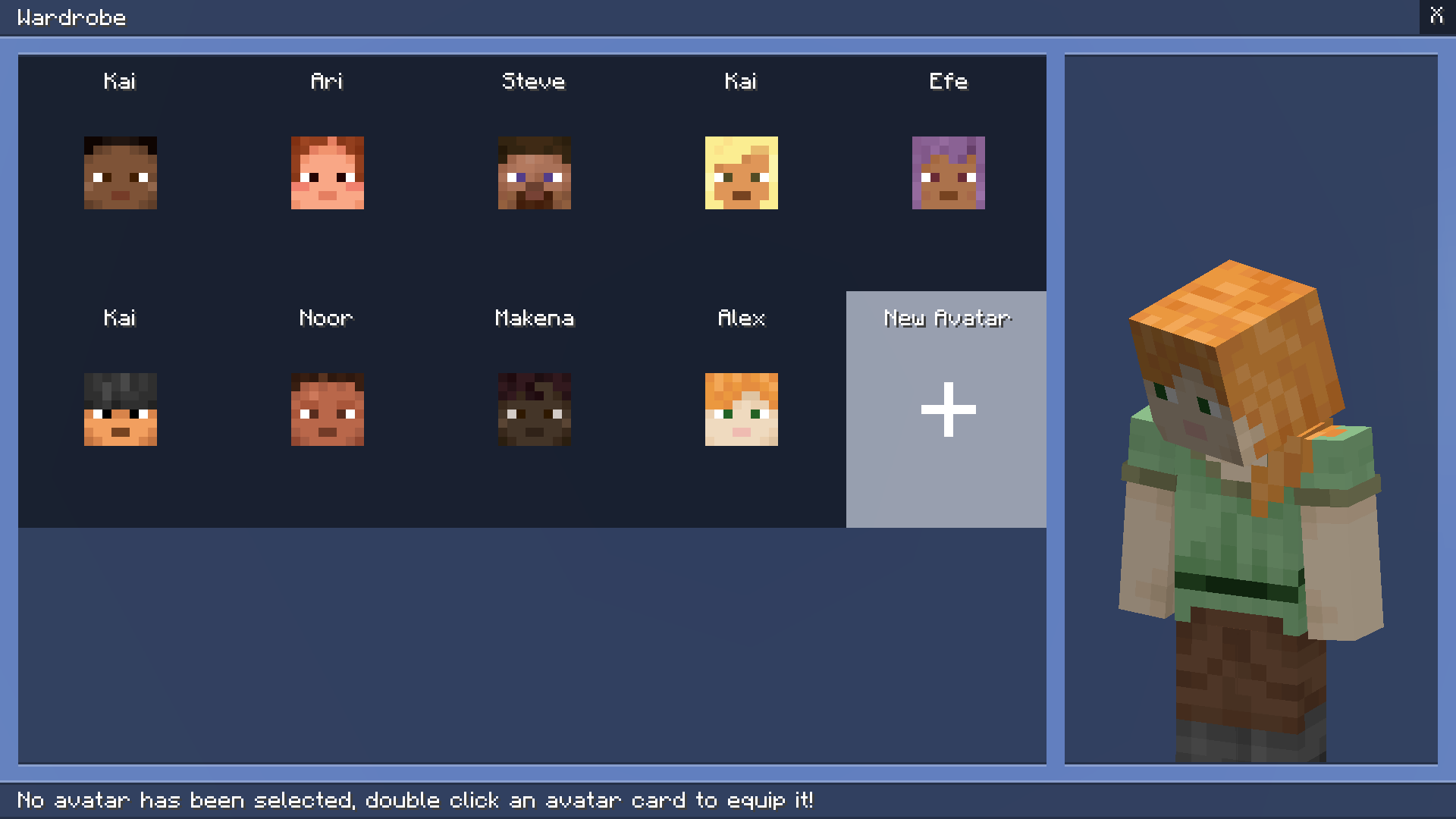
Once the wardrobe screen is open, you will see a bunch of clickable avatars and a "New Avatar" button located at the very last of the avatars, we call these "cards", remember this well.
Creating The Avatar
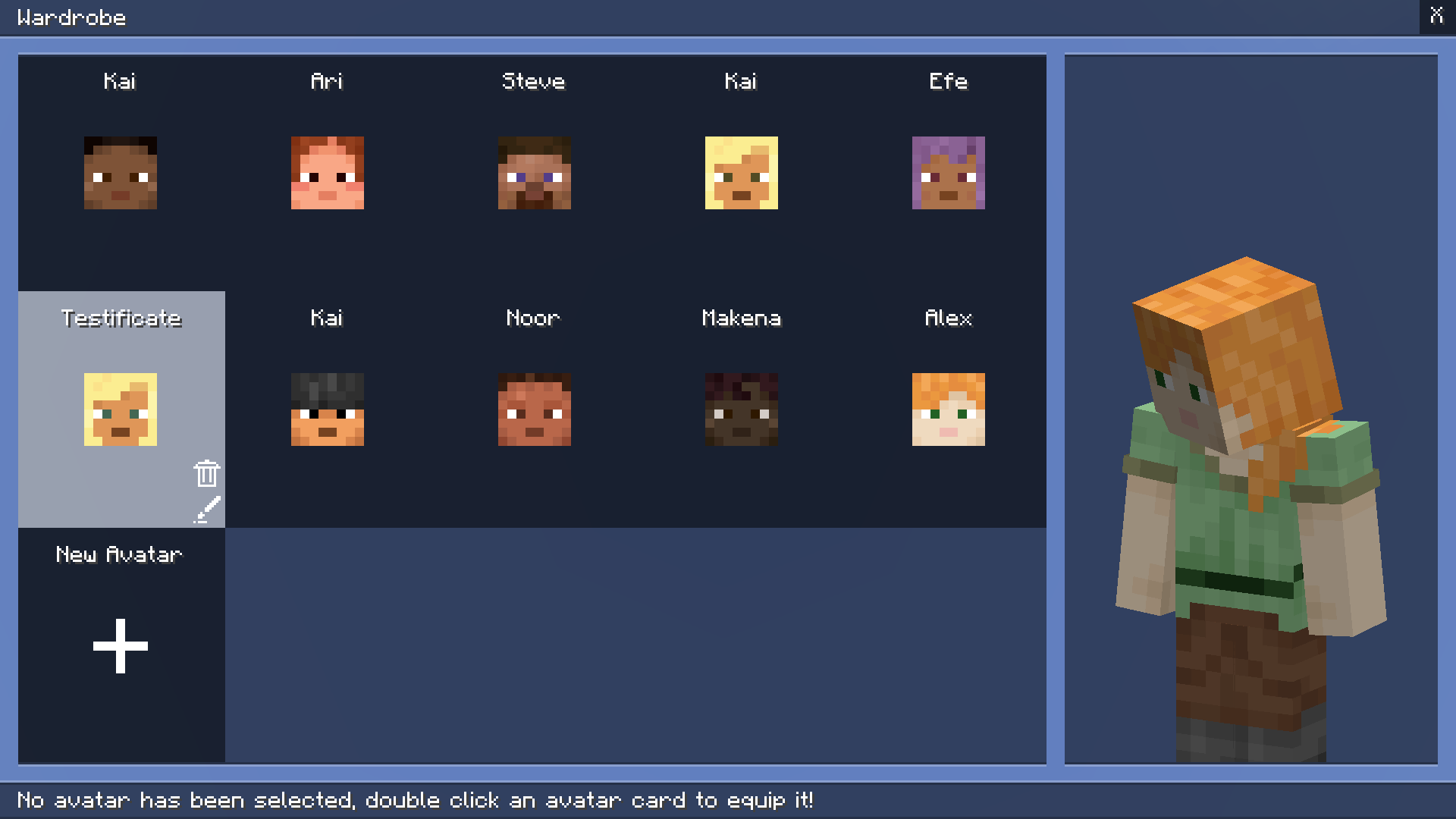
You can simply press the "New Avatar" card that always located at the very last of your avatar cards.
The avatar creation screen will show two fields (automatically filled using your player username).
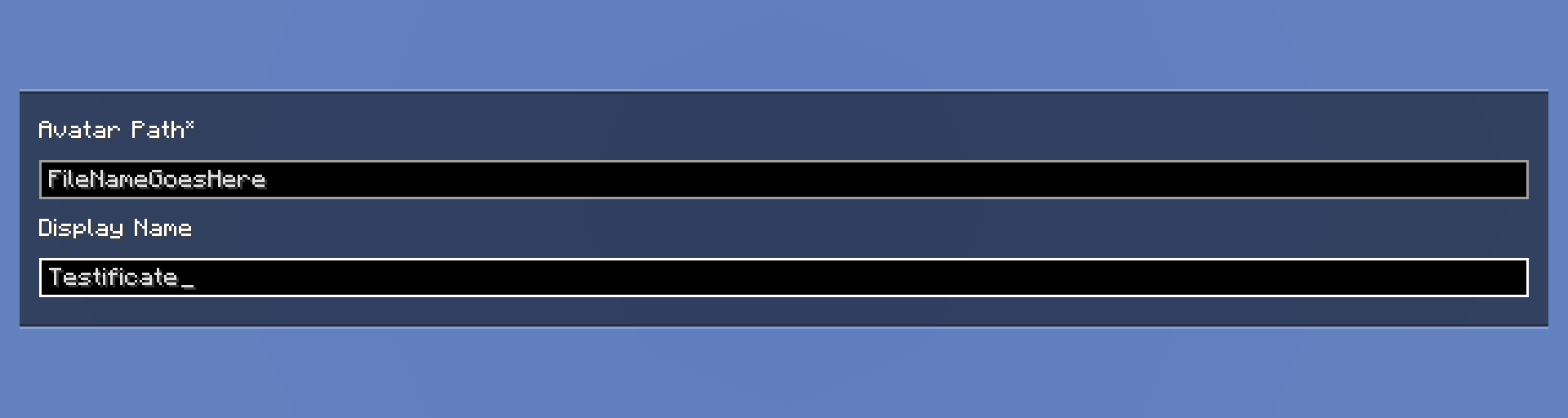
- Avatar Path* - The path of your avatar relative to
<minecraft>/config/skinmatics/avatars/. It does not necesarily means your file name, it can be in another directory likepresets/stevewhich is saved in<minecraft>/config/skinmatics/avatars/presets/steve.json - Display Name - The name of your avatar in your wardrobe
*mandatory field (can't be empty)
Please be careful with picking the avatar path. Some characters is not allowed to be used in a file name (restricted by operating system), and Skinmatics does not have valid file character checking.
Once you're done, click "Create" at the bottom-right of your screen or press "X" (or press Escape) at the top-right of your screen to cancel it.

There are also a few "error" message you might found, the error message can be ignored by simple holding down the "Create" button (if possible), the known errors are listed:
"Avatar path cannot be empty"- The "Avatar Path" field cannot be empty (will gray-out the "Create" button)"An existing avatar is found at <avatar>, creating a new one will overwrite the current one (does not remove avatar loaded from resource pack)"- There's an avatar file with the same file name
You can access your avatar file in <minecraft>/config/skinmatics/avatars/
To load your texture, put it in <minecraft>/config/skinmatics/textures/ and reload resource pack (F3 + T by default) to load it (also refreshes your avatar files)